Power outage fries DSL modem and brings back kernel panics

Posted by Pierre Igot in: Macintosh
December 23rd, 2012 • 11:30 am

Sometimes I really feel as if I am somehow cursed. The reality is that I am just too reliant on modern technology, of course, but so is almost everyone else. And the thought that most people have to go through situations like the one I went through yesterday morning is, strangely enough, not particularly comforting.

What happened is that we had a power outage during the night, probably due to high winds. The first sign was of course the alarm clock blinking, with the wrong time, when we woke up. Power outages are unfortunately a fact of life especially in rural Nova Scotia, although I must admit that, since our move to Annapolis Royal last April, we’ve had very few of them.

I didn’t think much of it until I went to the bathroom and walked past our Time Capsule, which is located in a corner of the corridor. (I find it too annoyingly noisy when it comes on to keep it in my office.) I saw that the normally solid-green light was amber and flashing. “Oh well,” I thought, “yet another network-related glitch after a power outage.” If only…

Of course, I soon discovered that our entire home network was down. Power-cycling didn’t help, so it was time for more advanced troubleshooting. I was soon able to narrow the problem down to the DSL modem itself. Its own power indicator was flashing red instead of solid green. The “DSL” indicator was solid green, but the “Internet” indicator was off.

I started fearing the worst. I called the phone company. To their credit, I didn’t have to wait long and the tech support representative was a very friendly lady. But she soon had to give me the very bad news that the power outage had somehow fried the modem and that they were going to have to send me a new one.

Of course, everything with phone companies is now centralized and there was no way that I could just go to a local office and pick one up. I had to wait for it to arrive in the mail. And it would take… “two to five business days”. Right in the middle of the holiday season, this very clearly meant that I might not receive it until the new year!

And so I was facing the prospect of a holiday season with no Internet access. Delightful!

Fortunately, I immediately thought of my sister-in-law’s house. They also have Internet access with the same company, and they are away at this time of year. I asked if I might be able to borrow their modem and use it in my house. The tech support representative didn’t see why not, although I did warn her that it was probably a different, much older modem. She said that I had nothing to lose by trying, and so I went to retrieve it. It turned out that they had two modems (for two different phone lines) and the second one was a more recent model, albeit still a different one from mine (which is also a wireless router, although I only use it as a modem and have my AirPort Extreme connected to it).

After much plugging and unplugging and waiting patiently (not!) for devices to recognize their environment and adjust to it, I was eventually able to make this modem work with my own phone line and achieve the same regular speeds as with my own modem. Phew!

And then I had a kernel panic. ARGH. It had been more than two weeks since the last one. (This particular problem is completely unpredictable.) When exactly is Apple finally going to take these problems with NVIDIA video cards and kernel panics in Mountain Lion 10.8.2 seriously? As far as I can tell from on-line research and from the feedback I have received via my blog and my Twitter account, quite a few people are affected, including people with Mac Pro machines that have more than one video card, but also MacBook Pro owners.

Of course, as soon as I restarted, I also had to deal with the fact that Mountain Lion’s Safari fails to resume properly after a restart, and also that, because of the experimenting I had had to do with the replacement modem by accessing its settings via the web, Safari had actually completely lost my last session with probably about 30 different web pages loaded in tabs and windows. Grrr.

And then I had another kernel panic.

That’s right, two in less than an hour, after none for two weeks. It looked like this power outage was really trying to completely ruin my holidays!

I finally gave up and unpacked the Mini DisplayPort to Dual-Link DVI Adapter that I bought last month in anticipation of such a situation. It’s a pricey device (over $100), but it enables me to connect both my 30” monitors to the same GeForce GT 120 video card and not use the second one. My hope is that this will somehow avoid the kernel panics altogether, since they only seem to affect Mac Pro owners with multiple video cards. I haven’t taken the unused video card out of the Mac Pro yet, but I will if I still get another kernel panic after all this.

For additional safety, I also went to the hardware store and bought a surge protector for the DSL modem in the basement. I don’t know if the modem failure was triggered by a power surge when the power came back on (no other equipment in the house was affected), but I’d rather not take any chances.

Then this morning I read Ted Landau’s recent column at Macworld, titled “Bugs & Fixes: Turning power off turns trouble on”. And I found more reasons to worry! Clearly the simple fact of turning stuff off and back on can bring about unwanted problems, and surge protectors themselves can add to the frustration.

Can I have a glitch-free holiday season now, please, Santa?


Pages documents in the Cloud: 5 MB for a blank document with plain text?

Posted by Pierre Igot in: iPad, Macintosh, Pages
December 23rd, 2012 • 10:37 am

The one thing I hate the most about cloud-based computing is the sense that I have lost control, that the computer does things on my behalf with very little input or feedback, and that things can fairly easily go wrong. And so I tend to avoid it like the plague.

That said, as a tech support guy, I am also expected to help other people out with their use of cloud-based features. So I do feel a need to try and experiment a bit, although I always do it with things that are not of a critical nature.

A few weeks ago, I experimented with creating a couple of Pages documents in the cloud, with my (first-generation) iPad. They were just plain documents that I created (as far as I can remember) using the default “Blank Document” template, and in which I just typed a few lines of plain text, with no formatting, no images, no layout whatsoever.

It appeared that things went smoothly. The documents were saved with the names I gave them, and the next time I went to my computer, brought up the “Open” dialog box in Pages ’09 and switched to iCloud, the two documents were there and I was able to open them and view them on my Mac.

Then yesterday I had a kernel panic (sigh) and after the computer restarted, I got a weird dialog asking for my iCloud password (I’m not even sure which application the dialog belonged to), so I went to System Preferences to check the status of my iCloud account. I was signed on with the various features checked, so I clicked on the “Manage…” button to see what was going on in more detail. And, among other things, I saw this:

icloud-pagesdocs

According to this information, each of the two documents that I had created on my iPad weighed a whopping 5.2 megabytes!

That didn’t quite make sense, so I had to double-check and went to icloud.com to view the documents there. The site told me the same thing, i.e. that each document was over 5 MB. I tried downloading one of them from the web, and checked the result in my “Downloads” folder: It too was over 5 MB.

I opened the document package to see what was inside and here’s what I saw:

icloud-pagesdocs-contents

Needless to say, I am not the one who put any of these “storyboard_paper” files in there. It looked like the document was based on some kind of template with various background image patterns stored in it, even though none of the patterns actually appeared in my document.

I had to try again from scratch and so I went to my iPad, and created a new document in Pages. I made sure I selected the “Blank” document template, which was not hard to do, since all the other ones had all kinds of stuff in them by default. There is simply no way that I accidentally selected anything other than this “Blank” template when I initially created these two documents a few weeks ago.

I gave my new test document a name (“Test”). And then I went back to icloud.com and tried to download it. And I got this:

icloud-pagesdocs-versions

See what I mean about having a feeling of not being in control? I had just created the document two minutes ago, and now iCloud was telling me that I had to choose between this version and an older version from… April 2012? What the hell?

Now, maybe I did create a Pages document with the name “Test” on my iPad six months ago, as part of another testing procedure. It’s possible. But there is no other document called “Test” in the iCloud storage for my Pages document! So where on earth is iCloud seeing this other version that is somehow in conflict with the one I just created?

It just mind-numbingly impenetrable.

I ended up downloading the “newer” Pages document and, sure enough, that one only weighed 99 KB, so I guess whatever caused my original documents from a few weeks ago to weigh 5 MB each is gone. But still… I just don’t see how Apple expects us to trust a service like iCloud with behaviours such as those. In many ways, to me cloud-based computing feels like an extension of the feeling that most computer users have with their machines, especially on the PC side of things, i.e. a feeling that the user is not in control, that “the machine” does incomprehensible things and that there is no point in trying to figure them out.

As an experienced Mac user, I of course know better and my experience as a troubleshooter means that, in most situation, I am able to come up with an explanation, even if it boils down to “a bug or flaw in the software” (most of the time) or “a glitch” (far too often). But with cloud-based computing I too am starting to feel like we have entered a realm of endless glitches and bugs, with incomprehensible behaviours that there is no point in trying to figure out. Of course, with anything that is network-based, there is the added dimension of unreliability and server unpredictability, which means that in many cases one encounters behaviours that one cannot even reproduce five minutes later. Which makes the whole situation even more unfathomable.

I suspect that, in many cases, cloud-related glitches are just going to become a part of life and that even experienced troubleshooters such as myself will increasingly be forced to endure them along with everyone else, with a shrug of the shoulders as the only possible response when faced with things that don’t make sense and do not work as expected.

I cannot say that this paints a future that is very attractive to me.


iTunes Store Experience: Not for the music lover

Posted by Pierre Igot in: iTunes, Music
December 18th, 2012 • 11:36 am

Here is a telling example of everything that is wrong, in my opinion, with the current state of the music industry.

Yesterday, I was listening to an Etta James mixtape from 2009. The mixtape included one song that I particularly liked, titled “Quick Reaction & Satisfaction”. So I decided to try and find more about this song and where it came from.

I quickly found the Wikipedia page about the album Etta James Sings Funk, from 1970, which indicated that, unfortunately, the “album was released as a 12-inch LP record and has not been reissued on compact disc in its entirety although five tracks were included as additional cuts on the reissue by Kent of Etta James’s Losers Weepers album in 2011”.

I found the Losers Weepers album at Amazon.ca, but it was a bit expensive and I wanted to try and hear samples of the other tracks on the Etta James Sings Funk, so I went to the iTunes Store (for Canada) and searched for “Etta James”. And I got this:

itunes11-ettajames1

Since I was looking for an album, I switched to the Albums results. And I got this:

itunes11-ettajames2 - albums

Try it yourself. You get a full list of albums, in an undetermined order. You get no total count of search results. You get to scroll up and down and drown in a sea of album covers. There is no way to sort the results by album title, by release date, etc. How do you find a specific album in such a list of results? As far as I can tell, Apple expects you either to carefully scan the entire list or to already know the covert art of the album and try and locate it visually in the list. I didn’t expect (unfortunately) to be able to find the Etta James Sings Funk album. But I expected to find the reissued Losers Weepers album, and so I scrolled up and down trying to find it, to no avail.

This is downright ridiculous. How on earth does Apple get away with providing no options for sorting search results? Are the record labels aware of this? Don’t they care that it unnecessarily makes things more difficult for people to purchase?

Since I couldn’t find the Losers Weepers album, I tried to view the complete list of songs in the search results, so that I could at least compare it to the track list for the original Etta James Sings Funk album and see if individual songs were available:

itunes11-ettajames3 - songs

Again, things are sorted in some unfathomable order and again, as far as I can tell, there is no way to change the sort order, i.e. to sort songs alphabetically!

What the hell? I just couldn’t believe that the situation was so bad, so I went on an on-line search and quickly determined that, indeed, apparently, the absence of sorting options for search results is part of the “new and improved” store in iTunes 11. And apparently, the only way to work around these limitations is to start all over again, by going to the store home page, switching to “Column Browser” view, and browsing by medium, then genre, then artist:

itunes11-ettajames4

This assumes that you know that Etta James is classified under “Blues” or “R&B/Soul”, and then you get a full list of all the multiple copies of each track and you are supposed to sort through all this to find what you actually want — with all the associated iTunes sluggishness too: it takes 20 seconds to get the full list of genres, and more than 20 seconds to get the full list of songs! (All that to find that, out of the 11 tracks from the Etta James Sings Funk album, a grand total of two are available through the iTunes Store.)

Again, I ask: How does Apple get away with such an abysmal experience? I realize that, in all likelihood, most of the store’s revenue is derived from sales of the latest pop sensations and that the customer experience is probably OK for that. But still… to me this situation epitomizes the sad state of the music industry. It is, apparently, the best that they can offer. (iTunes is the top music retailer.)

There is probably not enough of a market for CD re-releases of older albums such as Etta James Sings Funk, but isn’t it a prime example of what a virtual store such as the iTunes Store could offer? Instead, we get compilation after compilation of the same most well-known tracks, that are all available in multiple, identical copies. And even recent re-releases, like the Losers Weepers album, are not available, probably because legal/distribution issues. (It looks like it was a European reissue, but it’s not available at the UK iTunes Store either.)

The end result is that I probably won’t buy anything at all. I am interested in this Etta James Sings Funk album, but only two of the tracks are available via the iTunes Store. And it was so painful just to get there!

I still prefer to buy most of my music on CD, whenever I can, and this latest experience isn’t about to make me change my mind. On the contrary, it just confirms my worst fears about the music industry, which is that, these days, it really does not care one bit about music lovers (if it ever did).


iTunes 11.0.1: Fixes Column Browser issues and improves performance

Posted by Pierre Igot in: iTunes
December 14th, 2012 • 9:53 am

Apple has just released an update for iTunes 11 (iTunes 11.0.1) and I am glad to report that it appears to include improvements for two of the issues I mentioned last week.

First of all, the View › Column Browser submenu is no longer disabled when the sidebar is visible.

And then the egregiously bad performance issue when editing tags that I mentioned last Saturday appears to have been addressed to a certain degree. iTunes still re-saves the entire “iTunes Library.xml” and “iTunes Library.itl” files each and every time you make a change to a tag, but the process has become more of a background process and does not interfere with user interactions with the software as much as it did in iTunes 11.0.0.

I still worry about the number of times that iTunes saves and re-saves such large files. It strikes me as a very inefficient way of doing things. (These files are not “packages” consisting of small, individual files that are just hidden from view. They are actual single files and a change in their modified date means that they are being entirely rewritten to disk each and every time.)

And the saving process is not fully seamless and still triggers the appearance of the Spinning Beach Ball of Death on a regular basis. It just that it does not occur each and every time you edit a tag and jump from track to track using the Track Information dialog box or in the song list. So we are basically back to the performance levels of iTunes prior to the upgrade to version 11, with possibly some small improvements in some areas (like AppleScript script execution). iTunes is still painful to use with a large library of tens of thousands of music files, but it’s not longer outrageously painful.

The quick release of this update is appreciable (and appreciated), although one does wonder how such issues did not get noticed before the release of iTunes 11.0.0. Just like I cannot help but wonder how much effort Apple’s engineers put into testing their software on machines running multiple monitors as an extended desktop, I cannot help but wonder how much effort they put into testing iTunes with large libraries.

And I really hope that they will come up with some more elegant and less resource-intensive mechanism for saving the library files soon.


Mountain Lion’s Safari: Does not resume properly after restart

Posted by Pierre Igot in: Macintosh
December 10th, 2012 • 3:33 pm

I don’t know if it’s just me, but there’s definitely something that is not right with Safari’s Resume feature in Mountain Lion on my machine.

Well-behaved OS X applications follow the “Close windows when quitting an application” setting in System Preferences › General: If the option is not checked, when I re-open those well-behaved applications, the documents and windows that were left open before the application was quit are automatically restored.

Among these well-behaved OS X applications are Apple’s own applications, including TextEdit, Preview, the iWork suite, and of course Safari. Normally, when I quit and relaunch Safari, it automatically restores all the windows and tabs that were left open at quitting time.

I’ve already noted on this blog that the Safari application in OS X 10.8 (Mountain Lion) suffers from a bug that causes it to fail to draw drop shadows around Safari windows restored on a secondary monitor. It’s annoying, but it’s a minor visual glitch.

More serious is the fact that, in my experience, the Resume feature in Mountain Lion’s Safari only works properly when the application is manually quit by selecting the “Quit Safari” command in the “Safari” menu.

If, on the other hand, OS X automatically quits Safari along with all other applications when I request a restart via the Apple menu or as part of an application installation process, then after the restart, Safari’s Resume feature restores… only some of the windows and tabs that were left open when it was quit. It looks like Safari restores not the most recent state of the application, but some earlier state, from some unidentified time.

Because of the numerous kernel panics that I have been experiencing due to a videocard-related bug introduced by OS X 10.8, I have had the opportunity to observe this behaviour very often lately. A kernel panic appears to have the same effect as a restart (as opposed to quitting Safari manually), in that, on relaunch, it causes Safari to restore an earlier state of the application’s windows and tabs. In fact, I initially thought this faulty behaviour was limited to restarts induced by a kernel panic, but I have since been able to confirm that it also occurs with normal restarts.

Fortunately, there is a way around this problem: When Safari relaunchs, I can just option-click on the Close button of any of the windows that it restores to close them all, and then choose “Reopen All Windows from Last Session” in the “History” menu:

safari6-resume

This will in fact force Safari to resume using the most recent state of my windows and tabs. So clearly Safari does save the most recent state when it quits via a restart. The question is: Why does it not resume based on that saved state, but on some other state from an older session?

Now, it’s possible that this is a glitch that only affects a small number of people. (It’s hard to find information about this on-line, because the keywords involved are all very generic and lead you to all kinds of other, unrelated pages and posts.) On the other hand, in my experience, Safari is not the only application affected by problems with the Resume feature.

I have also noticed that several applications, after a restart, fail to re-open any documents or windows, even though there were windows and documents left open when they were quit. Again, this only occurs with a “indirect quit”, i.e. one that is triggered by a general restart command and not by manual selection of the “Quit” command in the application menu. Affected applications include Preview, TextEdit, and Numbers ’09. All these are Apple applications that are supposed to honour the the “Close windows when quitting an application” setting in System Preferences › General. And all these applications do honour it when they are manually quit. But not always when they are indirectly quit via a general restart. (For those other applications, in my experience, the situation is a bit more unpredictable. While Safari never restores the very latest state after a general restart on my machine, these other applications sometimes do restore their latest state, and sometimes don’t re-open any windows at all.)

I’d be curious to know if anyone else is experiencing similar problems with Mountain Lion. I’ve already submitted a bug report to Apple, but it might help if more of us do so.


iTunes 11: Pathetic performance when editing tags

Posted by Pierre Igot in: iTunes
December 8th, 2012 • 5:43 pm

In recent years, using iTunes to manage my music library has always been, for me, a major exercise in frustration. The Spinning Beach Ball of Death has always been part of my experience using iTunes.

While some aspects of iTunes’s performance levels have actually improved in iTunes 11 (notably the execution of AppleScript scripts, generally speaking), I am afraid I have to report that, for basic track management and particularly for editing track tags, the user experience has become even more painful for me.

If, for example, I go under the “Songs” tab and, using the column browser, I select a specific album by a specific artist, and then I try to edit the album tracks’ tags (name, artist, album artist, etc.) manually, whether I use the mouse directly in the song list or I bring up the modal track information dialog box for a specific track and then use the “Next” and “Previous” buttons to jump from track to track without having to exit the dialog box, I get constantly interrupted by the SBBOD, to the point that it easily takes me 20 seconds or more to make a simple edit.

As far as I can tell, this is because, each time I make a change, behind the scenes iTunes rewrites the two following files in full:

iTunes Library.xml
iTunes Library.itl

Given the size of my music library, these two files are respectively approximately 200 MB and 50 MB. Even though my operating system is on an SSD, including my user folder with the “Music” folder which contains the “iTunes” subfolder enclosing these two files (while the actual media files are stored on a separate conventional hard drive), saving a 200 MB or 50 MB file is far from instaneous and, while the saving is taking place, iTunes becomes completely unresponsive (although music playback usually continues uninterrupted) until it’s complete.

And iTunes also regularly creates and then removes temporary files in that same location, an operation which can also cause iTunes to become unresponsive, even in the middle of editing a track tag (i.e. before even pressing the Enter key or clicking elsewhere to validate the edit).

It’s just too painful for words. There are other contexts where editing tags is not as painful, for whatever reason (for example when doing it from within a specific playlist), but this is a basic task and the song list, even with the column browser visible (hiding it does not seem to make any difference), is a perfectly normal place to do it.

I do realize that my music library is somewhat “abnormally” large. I too have encountered the problem described here by Kirk MacElhearn, with the search feature seizing up for 30 seconds or more. Fortunately, other people have found a way to alleviate that particular problem somewhat (by deselecting “Search Entire Library” in the magnifying glass’s pop-up menu), but the search feature too remains slow even when it’s limited to music only.

As far as I can tell, there is no way to alleviate the problem with iTunes rewriting the entire library files every time one makes an edit in a tag. Does Apple ever test its software on machines with more than a few thousand tracks in their iTunes libraries? How can it consider such abysmal performance levels acceptable? Saving these library files is a background process that should take place behind the scenes without interfering with the user experience!

I might be ahead of the pack in terms of the size of my library, but sooner or later, more and more people are going to get to such levels too. And from an engineering point of view, how is it considered elegant or even acceptable to resave a 200 MB file each time the user makes a simple edit, by just adding or deleting a single word in an MP3 or AAC tag?

Fortunately, when I run an AppleScript that modifies the titles of a batch of selected songs, for example by applying or removing word caps, iTunes is able to run the entire script is a single process without being interrupted by the task of saving the library files after each and every edit, but that “background” task does occur sooner or later after the script has run, and also makes iTunes unresponsive then.

In my view, the entire system is badly broken. No matter how often iTunes actually needs to save those library files, it is simply unacceptable that this background task makes the entire application unresponsive.

And I also worry about the life expectancy of my SSD with such a behaviour. There are only so many times that individual “sectors” on an SSD can be rewritten before the hardware starts going bad. I find such frequent rewrites of such large files quite disturbing.


iTunes 11: ‘Edit Playlist’ to work around the single-window limitation

Posted by Pierre Igot in: iTunes
December 4th, 2012 • 2:47 pm

Last week, I wrote that iTunes 11 can no longer open playlists in separate windows. This creates annoying limitations for those who, like me, are used to editing playlists in separate windows while looking at their music library in their main iTunes window.

In particular, I wrote:

So now if you want to, say, copy track X from playlist A to playlist B, you can no longer choose where you are going to drop track X in the track list for playlist B. Your only option is to drop track X onto the playlist B icon, and then switch to playlist B, scroll down to the bottom of the playlist, and then drag track X to where you want it to in playlist B.

A Betalogue reader was kind enough to send me a message with this correction:

This actually isn’t quite accurate. You can’t open a playlist in a separate window any more, as you noted, but if you right-click on a playlist and choose “Edit Playlist”, or select “Add To…” at the upper right in the playlist view, you will get a split-screen view wherein you can drag songs to any point in the playlist you’re editing.

Intrigued, I selected one of my playlists in the sidebar and right-clicked on it, and I got this:

itunes11-playlistmenu-sidebar

No sign of an “Edit Playlist” menu item or anything of the kind! Since I didn’t think that the reader was playing tricks on me, my suspicion immediately turned to the sidebar itself. We have already seen, with the bug about the column browser, that Apple’s engineers clearly have not tested the sidebar properly to make sure it works as can be reasonably expected.

And sure enough, when I chose to hide the sidebar and accessed my playlists through the “Playlists” tab in the main iTunes window, and then right-clicked on the same playlist, I got this:

itunes11-playlistmenu-main

The options are different, and they do indeed include an “Edit Playlist” menu item, which is not accessible anywhere else! (Whatever happened to discoverability?)

Selecting this menu item does indeed create a split-screen (or, more accurately, a split-window) view with the current tracklist of the playlist on the right-hand side and your music library on the left. iTunes 11 shows the “Albums” tab for your music library by default, but you can switch to “Songs” in order to get a full list of songs.

The tracklist on the right-hand side offers no alternate view options, however. The only available presentation is a numbered list with a small thumbnail of the artwork and the song title and artist for each track:

itunes11-playlist-edit

All you can do with this list is make it wider and change the sort order. This means that, even with a 30″ screen, you can only see about 25 tracks at a time.

Still, I suppose it’s better than nothing. And it seems to indicate that Apple’s engineers are at least somewhat aware of the limitations associated with a single-window view mode in iTunes, including for such mundane tasks as creating or editing a playlist.

I am still far from convinced that this is an improvement and that I won’t miss the ability to have several different windows at the same time. (It remains impossible, as far as I can tell, to have the iTunes Store in a separate window, in order to compare its offerings with what you currently have in your music library.) On the other hand, given that iTunes’s support for multiple windows was always somewhat buggy and unreliable, I suppose that this is just replacing one compromise with another.

I still find it sad that there is no “iTunes Pro” out there with top-class track management features (and better performance with large music libraries). As I’ve said before, I’d be willing to pay for this.


iTunes 11: Can no longer open playlists in separate windows

Posted by Pierre Igot in: iTunes
November 30th, 2012 • 11:20 pm

This one is a major disappointment for me: As far as I can tell, it’s no longer possible to open anything in a separate window in iTunes 11 (except for that new “Downloads” window, of course). It used to be that you could double-click on a playlist’s icon in the source list/sidebar to force iTunes to open the playlist in a separate window. No longer. If you double-click on a playlist’s icon under “Playlists”, it just starts playing it. If you double-click on a playlist’s name, it starts playing it and makes the name editable. And if you double-click on a playlist’s name in the sidebar… nothing happens. Wonderful, and undescribably elegant.

So now if you want to, say, copy track X from playlist A to playlist B, you can no longer choose where you are going to drop track X in the track list for playlist B. Your only option is to drop track X onto the playlist B icon, and then switch to playlist B, scroll down to the bottom of the playlist, and then drag track X to where you want it to in playlist B.

And if you want to compare something in the iTunes Store with the current contents of your library, well, good luck with that.

What’s next? Single window mode for the Finder too? Geez. Thanks for making life more complicated for us, Apple. I am really beginning to love the new iTunes (which is as fast and snappy as ever, by the way).


iTunes 11: Now comes with a separate ‘Downloads’ window

Posted by Pierre Igot in: iTunes
November 30th, 2012 • 11:11 pm

Very interesting. Having a separate “Downloads” window is apparently too complicated and not user-friendly enough for Safari, but it’s a perfectly good idea to add one to iTunes:

itunes11-downloads

Sometimes you really do wonder whether there’s anyone over there who cares about consistency.


iTunes 11: Column Browser bug and limitations

Posted by Pierre Igot in: iTunes
November 30th, 2012 • 3:42 pm

Here’s the first glitch I’ve encountered in iTunes 11 on my Mac Pro:

itunes11-columbrowser

When the sidebar is visible (“View › Show Sidebar”) and the source is a specific playlist rather than the default “Music”, the “Column Browser” submenu is greyed out and inaccessible.

If the sidebar is hidden and the source is a specific playlist, then the column browser submenu is accessible. But if the sidebar is visible, it’s not.

Initially, I also thought that the column browser didn’t work even for the main “Music” source. But in fact in order to be able to use it with “Music” as the source (rather than a specific playlist), you need to click on “Songs” rather than “Albums”, “Artists”, etc. After that, the column browser is available.

Unfortunately, in all cases, the column browser in iTunes 11 appears to be more limited than it used to be. It does not look like you can use the vertical layout (with columns on the left) anymore. Why did Apple have to take this away from us?

As for the column browser for playlists with the sidebar visible, I hope it’s just a glitch and something that will be fixed in an update soon.


Really Smart Paste: Keyboard Maestro and BBEdit to fix copied text from on-line database and other sources

Posted by Pierre Igot in: Macintosh, Microsoft, Pages
November 28th, 2012 • 11:02 am

As a professional translator in Canada, I am constantly referring to the TERMIUM database, which became accessible free-of-charge a couple of years ago as part of the Language Portal of Canada.

One thing I do not like when using on-line databases, however, is having to retype things. Whenever I have to look up a term, I tend to copy it from the source and then paste it in the search field in the database. Conversely, whenever I find a term in the database, I tend to select it in the on-line interface and copy it so that I can switch back to my word-processing application and paste it there.

This process raises several issues: text copied from an on-line database interface is, by default, in rich text format (with font face, character size, colour, etc.); it can be surrounded by undesirable white space that is copied along with it; and whenever the text contains apostrophes, which is quite common in my target language (French), these apostrophes tend to be straight and not curly.

All these things can be fixed manually after pasting the copied term in the target application, but it is of course rather painful to have to fix them each and every time or even to have to remember to do batch replacements later on. Which is why I have, over time, developed tools to help me automate this process.

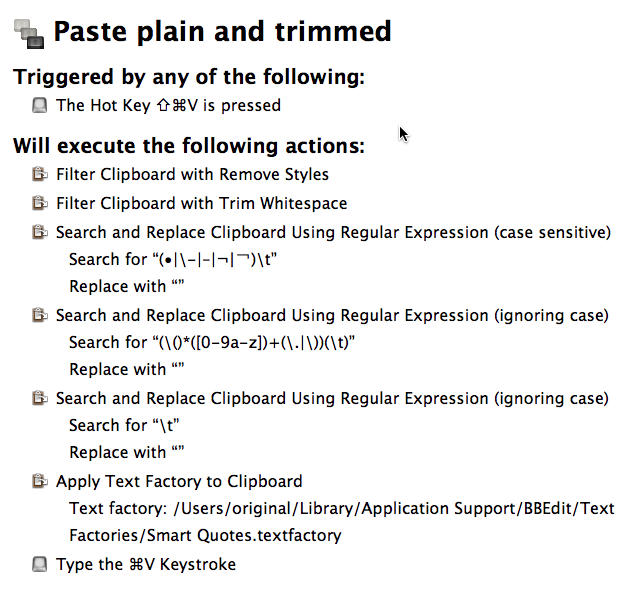
Over the years, I have struggled with the idiosyncrasies of the target applications that I use (mostly Pages ’09 and Word 2011, but also Adobe InDesign, TextEdit, etc.). But now I believe I have come up with a solution that is pretty good and definitely increases my productivity, so I thought I’d share it here:

pastefromtermium

Unfortunately, as you can see, it involves the use of third-party tools, namely Keyboard Maestro and BBEdit. However, that’s what productivity enhancements usually are: they require an initial investment, but they pay off over time. (I have been a user of both third-party tools for a long time, so the enhancement required no new investment for me.)

I chose the shift-command-V trigger because it’s easy to press, on my keyboard, with only the left hand, so that the right hand remains free to control the mouse, which tends to be necessary when dealing with on-line database interfaces. (They don’t have handy keyboard shortcuts for selecting search results.) I know this particular shortcut is used for other purposes in some applications, but these other purposes are far less important to me, so I’d rather use it for this. KM supersedes built-in application shortcuts, so it’s not even necessary to customize the application itself.

The first action in the Keyboard Maestro macro is a filter that trims the whitespace before and after the copied text. In my case, it enables me to work around a bug introduced by the revamped TERMIUM interface in Safari, which is that, when double-clicking on the very first search result to select it on the web, Safari also selects some invisible markup that ends up being converted into an extra carriage return before the text. (It’s hard to imaging anyone at either Apple or TERMIUM actually caring about this bug, so a fix will probably never happen.) The KM filter removes not only superfluous space characters, but also extra carriage returns. (For some reason, it also strips the formatting at the same time and converts the clipboard to plain text. But there is also a separate filter that does only that, which would be redundant here.)

The second action consists of applying a BBEdit Text Factory to convert straight quotes to smart quotes. KM has its own built-in filter for this, but it’s not as… smart as the one in BBEdit and can curl apostrophes the wrong way in some cases. The BBEdit Text Factory works very well.

Finally, the third action simply pastes the contents of the Clipboard, which has now been stripped of its formatting and the undesirable whitespace and also has had its straight apostrophes converted to curly apostrophes.

One additional benefit of this macro is that, for some reason, it also prevents the word processor’s pasting command from trying to outsmart the user by adding undesirable white space when inserting the text. This is particularly important in French, because there are many cases when I want to paste the term after a contracted l’ or d’ and I definitely do not want a space between the contracted article or preposition and the pasted text, which tends to happen otherwise. (I know that Smart Paste can be turned off altogether in Word 2011, but not in Pages ’09. And besides, Smart Paste is actually useful in other contexts. It’s just not smart enough to deal with all situations, and it’s definitely too English-centric.)

I should also note that, once this macro has been used once, the text in the clipboard remains in its stripped form, so it can be pasted again and again using simply command-V.

Finally, this macro is useful not just for pasting from TERMIUM, but also for fixing copied text from a variety of other sources. And it works the same in many different applications, including Pages ’09, Word 2011, InDesign CS6, etc.

It’s a bit sad that, after all these years, we still have to effectively “hack” our systems to make them behave properly as writing tools, but writing is only one of the many uses of a computer, and companies like Apple and even Microsoft tend to focus far too much on other uses. There is a definite lack of innovation in computing for writers, so our only option is to rely on third-party tools to enhance our productivity. Fortunately, these tools exist, and they work pretty well once you’ve learned how to use them.


Jeffrey Toobin’s profile of Elizabeth Warren in The New Yorker

Posted by Pierre Igot in: Language
November 22nd, 2012 • 9:22 am

I know it’s old news, but I came across this sentence this morning:

When Warren was six or seven, in Okhlahoma City, she told me…

So, apparently, Mr. Toobin’s astonishing journalistic skills include the ability to spot future US senators when they are six or seven years old and interview them right there on the spot.

Given that Mr. Toobin was born in 1960 and that Elizabeth Warren was born in 1949, the feat is even more astonishing. Jeffrey Toobin was able to intervew the young Elizabeth Warren before he was even born. Wow.

(I know, I know, it’s a bit of a cheap shot at an already stale piece of writing. But I do feel that The New Yorker’s standards have been slipping a bit lately. I also remember catching a forward meaning “foreword” in a fairly recent article, although I don’t have the exact reference.)


Mountain Lion: Extra zeros when editing date field in Numbers ’09

Posted by Pierre Igot in: Macintosh
November 21st, 2012 • 5:39 pm

Ever since I upgraded to Mountain Lion (at least I think that’s when it started), I’ve been experiencing this weird glitch in Numbers ’09, with table cells that are formatted using a yyyy/mm/dd date format.

The cell looks OK when I select it:

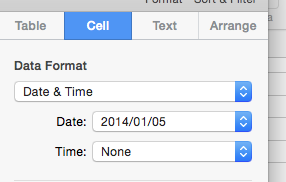
ML-Numbers-date

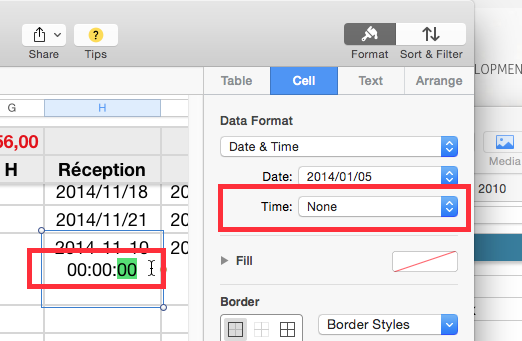
But then as soon as I enter it to edit it, I get this:

ML-Numbers-date-extrazeros

I have no idea where these four extra zeros come from. They don’t affect the editing of the date, except that of course they make things a bit more awkward, because the date no longer fits in the width of the cell and is now wrapped over two lines.

It seems to affect all my date formats. (In other words, no matter what date format I use, Numbers ’09 reverts to this format with the extra zeros when I try to edit the date.)

Today I decided to explore the issue further, and one of the first things that came to mind when thinking about this problem was that I have customized my default date formats in System Preferences. (I use French by default because OS X forces me to choose one language. I really wish OS X were more flexible when it comes to supporting the use of multiple languages simultaneously. But of course truly bilingual users are a minority, so…)

ML-date-formats

The only customization I’ve done is to change the short date format to display the year in full, because I find the short date with only two digits for the year quite unreadable.

And sure enough, as soon as I change the short date format back to two digits only:

ML-date-formats

I no longer get the leading zeros in Numbers ’09!

I guess the fix for now will be to leave the short date format with two digits only. I cannot remember why I wanted the four digits in the short date format as well, given that the medium date format for Canadian French is already yyyy-mm-dd. But there was a reason why I made the adjustment way back when. Maybe that reason no longer exists and all will be well. Maybe I’ll encounter a situation that will make me remember why I made the customization in the first place.

Gotta love all those little details that make one’s computing life… ahem, interesting, shall we say?


Lion/Mountain Lion’s Mail: Workaround for removing attachments from sent messages

Posted by Pierre Igot in: Mail
November 13th, 2012 • 9:28 am

In Lion (OS X 10.7) and Mountain Lion (OS X 10.8), Mail has a bug that, for certain types of e-mail accounts at least, causes the application to fail to identify sent messages containing attachments as such. The paperclip icon never appears in the message list, and the “Remove Attachments” command is greyed out, even though the messages do contain attachments, which can be confirmed by looking at the message contents of the individual messages.

There is a discussion thread about this particular problem on the Apple forums, which clearly shows that a number of users are affected. Over time, with Apple seemingly unable or unwilling to fix this bug, people have come up with various workarounds. The one I have come up with works reliably for me, although it is a bit tedious.

But now, on another discussion thread about the same issue, a user named oakmontoz has come up with a better workaround:

OK, I have no idea why, but the following worked.

I created a rule in the Preferences pane:
CONDITIONS
sender is me
attachment contains “.” (every file does)
RULE
set color to (anything)

The rule worked.
Furthermore, the paperclips appeared!!!

On the main discussion thread, a user named iBiM has come up with a more detailed description:

1 – Create a rule in the Mail Preferences pane
2 – Call it “Get My Paperclip Icons Back!”
3 – Set conditions as below :
A – If ALL of the following conditions are met :
B – From Ends With [Your email address here] (you can do this for multiple too]
C – Any Attachment Name Contain “.” [with the quotations around the dot]
Perform the following actions :
D – Mark as Read [which really makes no impact on how its viewed]

And the amazing thing is that it works! You still have to manually select the sent messages and use the “Apply Rules” command to force Mail to apply the rules (including the fix) to the selected messages, but after that, the paperclip icon indeed appears and the “Remove Attachments” command is no longer greyed out and works to remove the attachments from the message.

It is still rather shameful that Apple has not done anything about this bug in over a year (some people say that Apple has responded to their bug report by saying that it’s a “known issue”, which is more encouraging than Apple completely ignoring the problem, but they still haven’t done anything about this “known issue”), but at least we now have a workaround that is fairly easy to implement and use and will enable us to fix the problem manually until Apple finally fixes the bug itself.


Pages ’12: Top 3 list of improvements

Posted by Pierre Igot in: Pages
November 6th, 2012 • 3:04 pm

Pages ’12 obviously does not exist at this point in time. There have been no news about a new version of the iWork suite for OS X in years, and for all we know we might not get a significant update for another two or three years. Yes, the situation is that depressing.

This cannot stop me from fantasizing about what the next version of the Pages application for OS X might bring. So here’s my list of top priorities for new features and enhancements in the next version of Pages.

Hierarchical Style Sheets

I am getting really tired of having to change multiple paragraph style definitions every time my work requires a different font scheme. I typically have several different body text styles, all of which use the same font, the same character size, and the same leading. If I want to change one of these parameters in my document, I have to change it manually in each and every style I have defined. There is a reason why hierarchical styles (i.e. styles based on other styles) were invented. It’s time for Apple to get with the program.

The developers of the Pages application did a decent job of making styles more accessible in the user interface, presumably in order to encourage more people to use them. I think that adding the ability to define styles based on other styles can be done without making the interface too complicated. There is already a setting for “Following Paragraph Style” in the text inspector. They could use the same idea, although obviously basing a style on another style has more ramifications.

In any case, the pros outweigh the cons. If the addition of such a feature requires a more advanced UI, so be it. Apple can keep the current interface for those who are OK with the current situation, and add the hierarchical styles feature in a way that does not interfere with it. At least they should try.

Multiple Views of Same Document

I am not saying Apple should ditch the current WYSIWYG approach by providing multiple view modes, like Microsoft Word. I am saying that Apple needs to enable Pages users to view different sections of the same document at the same time. These different views can all be in the same WYSIWYG view mode. But we need to be able to view different sections of the actual document we are currently working on at the same time on our screens.

Right now, the only way to do this is to create a (static) copy of the current document in the Finder and open it in a separate window. But of course, if you do that, you end up with two different versions of the document, and you need to constantly double-check to make sure you are not editing the wrong one. Plus the static copy becomes outdated as soon as you make changes to the original, which forces you to make new copies all the time.

And then you have to clean up by trashing all these multiple copies. It’s painful, it’s inelegant, and it prevents writers and editors from doing a proper job. Cross-referencing and comparing sections are an essential part of composing documents. Pages needs to provide tools for this. (And so does Preview, by the way, for PDF documents.)

Better Customizability

As a power user, I would be tempted to request the addition of all kinds of customization features, like user-defined keyboard shortcuts (for features that are not accessible via the menu bar, and there are lots of those in Pages). But in fact, since becoming a Keyboard Maestro user, I have found that having such a system-wide customization tool is probably a better approach: it’s more flexible, more transparent, more powerful, and you don’t have to worry about where your customizations are stored and whether they will be preserved through system or application updates.

That said, Pages still needs improvements just to make it more compatible with Keyboard Maestro-based customizations. In particular, its AppleScript support needs to be improved. There are several things in relatively complex documents that cause Pages’s AppleScript support to lose track of the exact position of the current selection in the document, including (but not exclusively) the presence of an automatic table of contents. This is a bug that has to be fixed.

I also should not have to resort to GUI-based scripting in order to script some inspector-based features, like the value of “After Paragraph” spacing. In fact, anything that requires GUI scripting is a clear indication that AppleScript support in Pages ’09 is lacking.

There are of course plenty of other things that could and should be improved in Apple’s Pages. But when it comes down to it, the three priorities described above are the most urgent for me as a writer and editor working on relatively complex documents in the word processor. Pages ’09 is already a more-than-capable replacement for the word-processing horror known as Microsoft Word. But the implementation of these three priorities would go a long way towards making it even more capable and more plausible as a real word processor alternative.